
This piece outlines five common AirPods problems—charging issues, pairing failures, random disconnects, a malfunctioning single earbud, and a muffled microphone—and offers practical fixes from cleaning contacts and ports and updating devices, to toggling features like Automatic Ear Detection, resetting, and, if needed, factory reset or service/replacement.
Apple’s hidden Diagnostics tool can test hardware on both Apple Silicon and Intel Macs. To use it, update macOS, disconnect nonessential peripherals, then boot into Diagnostics: Apple Silicon users hold the power button until Options appears and then press Command + D; Intel Macs press D (or Option + D). Run the desired checks, and note the reference code (ADP000 means no issues). Apple provides many diagnostic checks and repair options, including self-service repair, if issues are found.
Waze users report issues like the app not opening or freezing, failing to fetch routes, inaccurate or random routing, location not updating, and an overload of alerts. Most problems stem from missing permissions, outdated app versions, or misconfigured settings, all fixable in minutes: clear the app cache, free storage, update or reinstall the app, and verify location permissions and precise location are enabled; reboot the device if needed. For route fetch failures, check connectivity, toggle airplane mode, and consider breaking long routes into shorter steps. To improve navigation accuracy, adjust Settings > Navigation to manage toll roads and enable personalized ETAs and routes. If location isn’t updating, ensure Location access is Always or While Using and perform a reboot if necessary. To reduce distractions, customize Alerts and reports and set Sounds to Alerts only or Off. These fixes are straightforward and can enhance reliability and reduce driving interruptions.
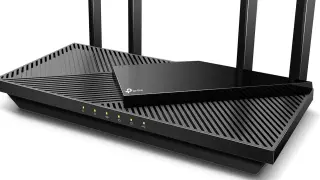
A practical guide to five common TP-Link router problems—slow or unstable connections, network congestion, weak Wi‑Fi coverage, insecure networks, and frequent reboots—with concrete fixes: check ISP status first, tweak settings (DNS like 8.8.8.8/1.1.1.1 and channel selection), keep firmware updated, connect devices via Ethernet when possible, consider mesh systems, extenders, or powerline adapters for coverage, secure the network with WPA3 and a strong password (disable UPnP and hide the SSID), and use a smart plug as a temporary reboot workaround while you seek support or a replacement for persistent reboot issues.
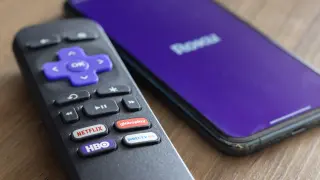
Blinking green LED on Roku remotes usually means the remote is in pairing mode or searching for a Roku device, and it can also indicate low batteries. To pair a new remote, go to Settings > Remotes & devices > Add devices > Remote > Continue (or press the pairing button if available); if there’s no pairing button, hold Back and Home until the LED flashes. After re-pairing, check the battery status under Settings > Remotes & devices > Remotes > Your remote > About. A rapid blink often signals a failing remote and the need for replacement; Roku sells replacements, including the Roku Voice Remote Pro (2nd Gen), the Roku Voice Remote, and the Roku TV Remote.
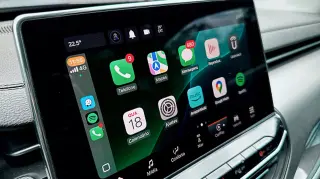
A practical CarPlay troubleshooting guide that walks you through simple fixes: restart your iPhone and your car, make sure CarPlay opens on the car’s display, verify Siri is enabled and that iOS is up to date, and allow CarPlay while the phone is locked. For wired CarPlay, test a different USB port and a data-capable cable, inspect and clean USB ports, and avoid adapters; for wireless CarPlay, ensure Bluetooth and Wi‑Fi are on and Auto-join is enabled. Check Screen Time restrictions and your car’s own CarPlay settings, then re-pair the connection (forget this car, then pair again) and, if needed, update the car stereo firmware or perform a factory reset as a last resort. If problems persist, contact Apple or the car maker.
To speed up Roku TV performance, keep the software up to date (Settings > System > Software update) and clear the cache, even though Roku doesn’t offer a dedicated cache option. You can purge cached data by triggering a system restart with a remote sequence: Home x5, Up x1, Rewind x2, Fast Forward x2; or perform a standard System restart (Settings > System > Power > System restart); or unplug the device for about 30 seconds before plugging back in. Clearing the cache can make apps load faster and make the system feel snappier; consider doing it about once a month or when you notice slowdowns. App-specific cache clearing isn’t available on Roku.
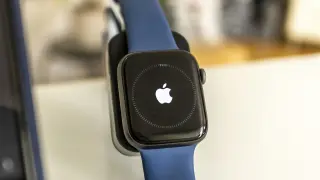
If your Apple Watch freezes, start with a normal restart: press and hold the side button, tap the Power Off icon, and turn it back on after a few seconds. If the screen is unresponsive, perform a force restart by holding both the Digital Crown and the side button until the Apple logo appears (about 10 seconds). If issues persist, check for a watchOS software update in the Watch app on your iPhone (My Watch → General → Software Update) or unpair and re-pair the watch, choosing Restore from Backup to recover data. If problems continue, consider service.
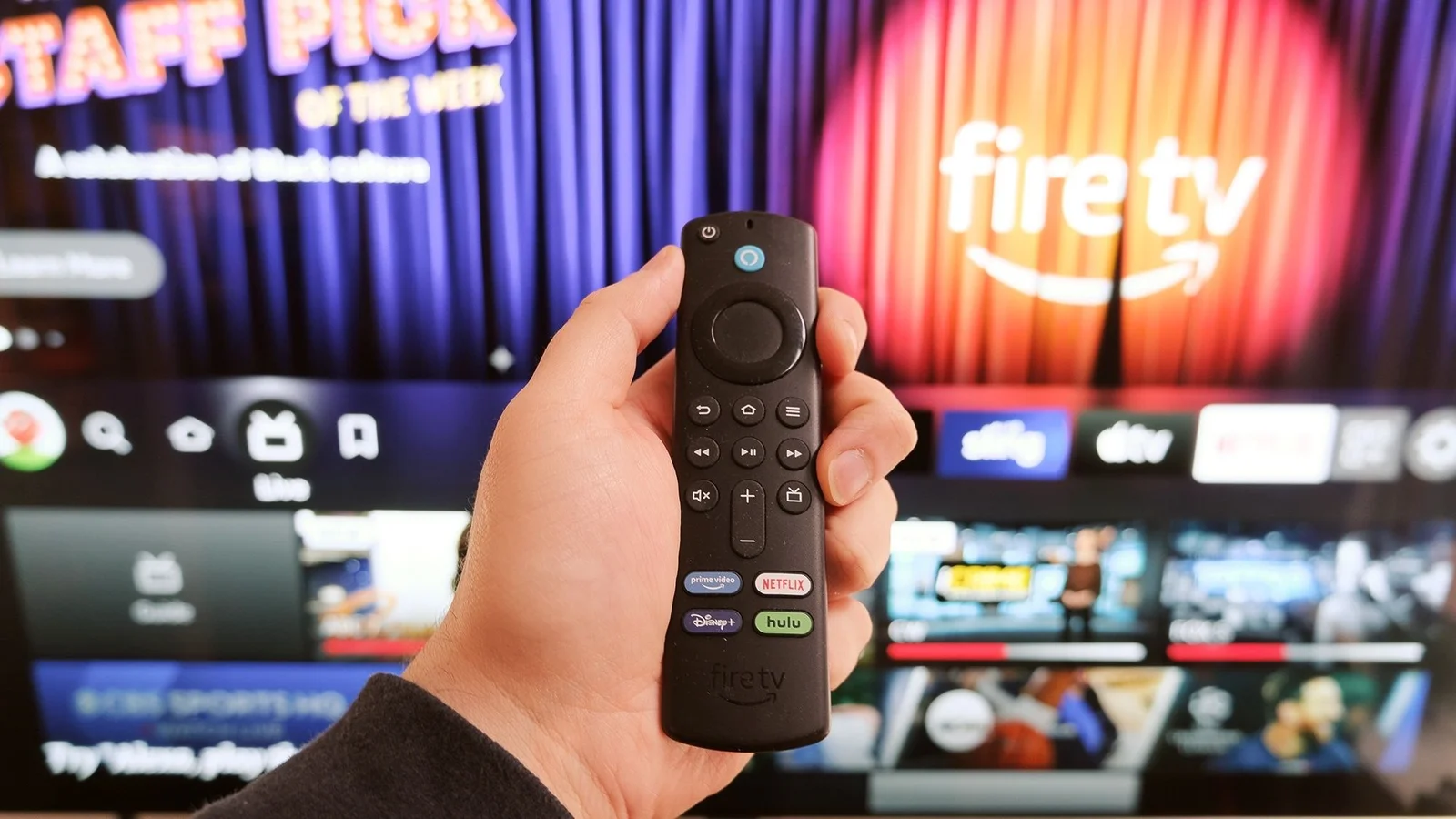
Autoplay previews on the Fire TV Stick home screen can cause lag by using bandwidth. Disable video and audio autoplay in Settings > Preferences > Featured Content, then reboot if needed to improve responsiveness.
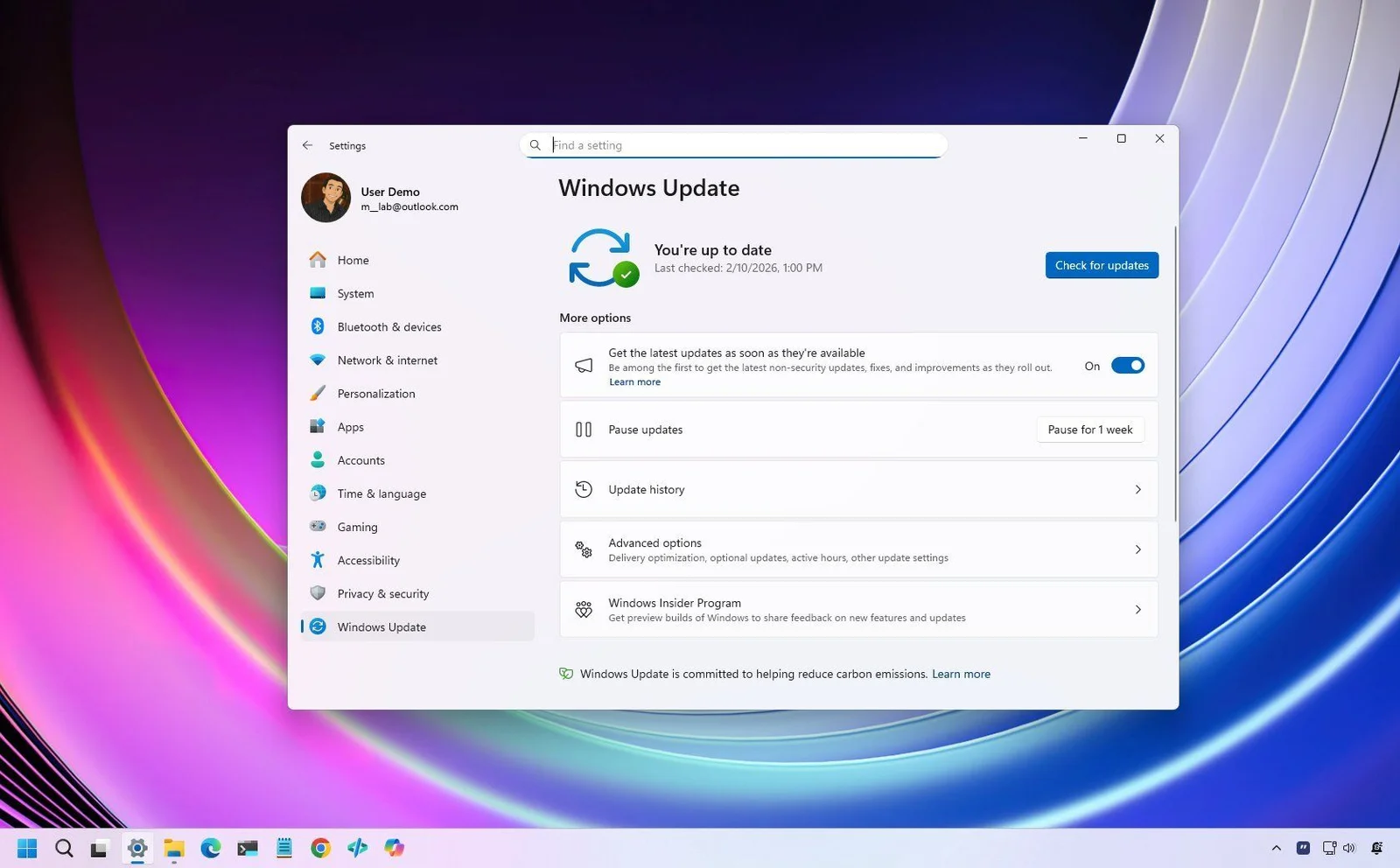
The Windows Central article reports that the Windows 11 cumulative update KB5077181 is failing to install on a subset of devices, with users encountering errors during the installation. The piece notes the issue but does not provide a confirmed fix within the article, leaving affected users awaiting guidance from Microsoft.
Microsoft has advised Windows users to uninstall a recently installed Windows Update after widespread reports of system instability, guiding steps to remove the patch via Settings and noting that the company is investigating the issue while a fix is developed.
The article reports a 403 error caused by a blocked request, likely due to server traffic or configuration issues, and suggests troubleshooting via CloudFront documentation.